
If you’ve ever struggled to find just the right image for your blog post or social media update, you’ll know how valuable a flexible design tool can be. Wealthy Affiliate’s Image Studio aims to make image creation super easy for anyone running an online business, blog, or niche website. I’m sharing my experience and honest thoughts to help you decide if this new AI image generator belongs in your digital toolkit.
What Is Wealthy Affiliate Image Studio?
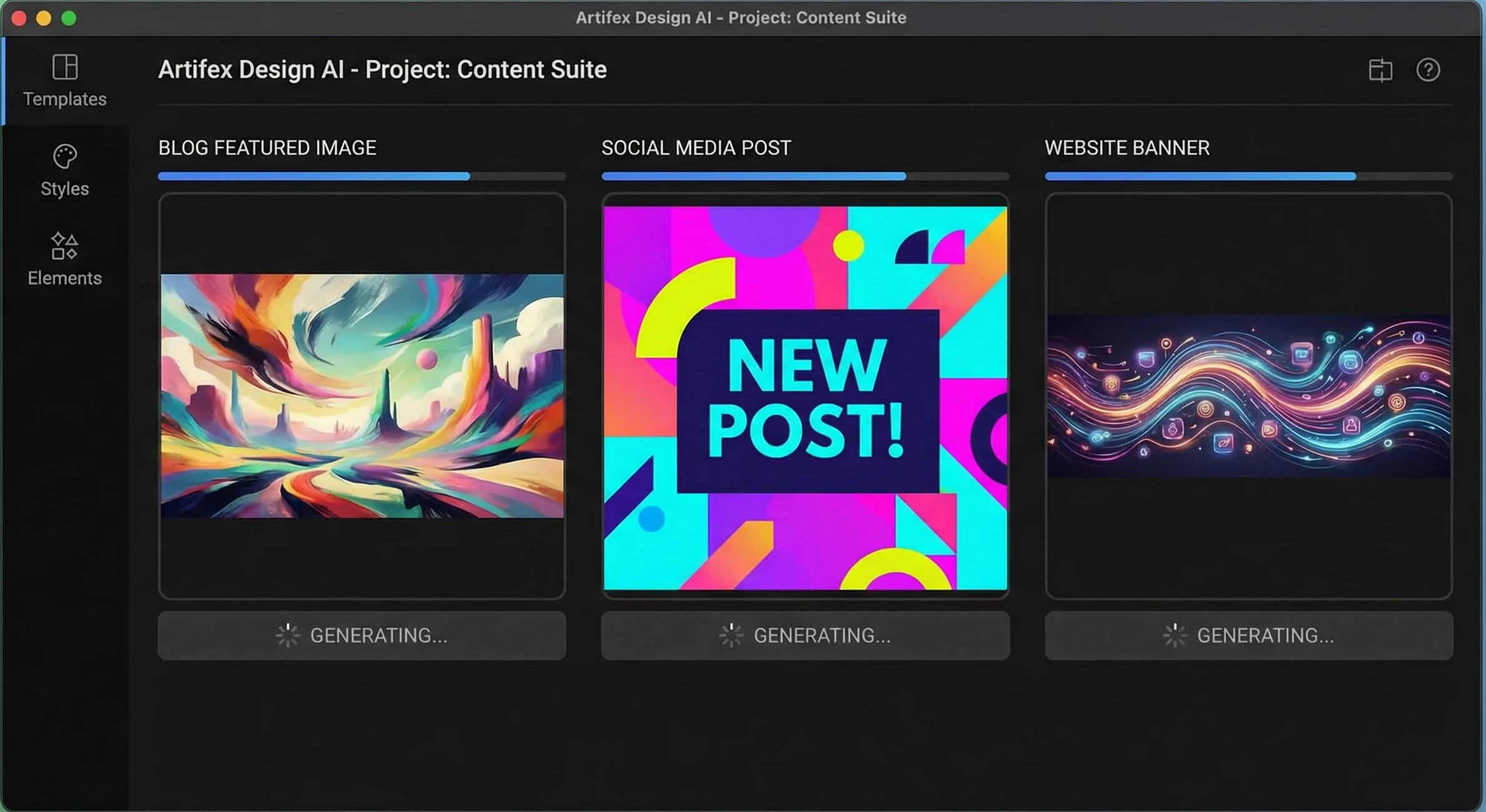
Wealthy Affiliate’s Image Studio is an AI powered image generator that lives inside the WA platform. Its main purpose is to help you produce fresh, unique graphics for content marketing without needing heavy design skills or separate tools like Photoshop or Canva Pro. I’ve found it pretty handy when I need graphics that aren’t available on stock photo sites, or have a specific look in mind for a blog post or an ad campaign.
It works right from the WA dashboard, tucked into what’s often called the DesignPop or DsgnPop area (you might see both names used). It’s really designed for WA members, but if you publish web content regularly, it can speed up your workflow.
How Wealthy Affiliate Image Studio Works
The workflow is pretty straightforward, even if you’re brand new to AI design tools. Here’s a step by step of how I usually use it:
- Pick an image size or format. You can select presets like vertical for Pinterest or stories, wide for banners or YouTube thumbnails, or a regular square for social posts. This part saves a lot of time compared to manually resizing designs elsewhere.
- Write a descriptive prompt. Just type out what you need. For example, “blue watercolor background with digital camera illustration, cheerful mood.” The more specific you are about style and mood, the closer the results match what you have in mind.
- Choose a style (optional). You can go with categories like digital illustration, traditional art, abstract, or just stick with the default.
- Click to generate. The AI does its thing and spits out a few different options. You can preview, select the one you like, and save it directly to your media library or device.
The built in gallery is pretty convenient. All of your generated images are stored there, so if you need to revisit old projects or update a post later, you’re covered. Plus, you can sort through your previous images or delete ones you no longer need, making your visual asset management more organized.
What Can You Create With Image Studio?
I’ve used Image Studio for lots of quick visual projects, especially when I want something a bit more custom than stock art. Here are some of the common things I’ve made:
- Blog featured images with unique color palettes and branding elements
- Website banners and hero sections tailored to the post topic
- Pinterest pins (with vertical presets that fit the platform just right)
- Facebook and Instagram post graphics, great for quick campaign visuals or seasonal content
- YouTube thumbnails that pop compared to busy, generic options
- Simple infographics or icon style designs for tutorials and listicles
- Product mockups for digital or printable products, including course covers and worksheet snippets
- Decorative illustrations or abstract backgrounds for branding pages
The ability to tailor aspect ratio and mood comes in handy when you have a well-defined brand style and want consistent visuals. Besides these, you can mix in decorative icons for callouts, design original promotional banners for flash sales, or experiment with fresh inspiration for upcoming marketing campaigns. Want a visually cohesive set of images for an entire website? Try using similar prompts and color guidance to keep things on brand.
Image Editing and Consistency Features
After generating an image, there’s an editing workflow in Image Studio. I’ve used this to tweak images by removing unwanted objects (“erase coffee cup from table”), refining color tones, or adding or changing background elements. The feature is pretty intuitive; just type what you want changed, and the AI handles the rest. You can even clarify details such as “make the background lighter” or “add a sunrise in the distance.” The image updates almost on the fly.
One thing some members have discussed is using a reference image for consistency (to keep a mascot, background, or color theme the same across different projects). I haven’t found this totally reliable, so I recommend testing it for your specific needs. For major branding projects, you might want to supplement with a traditional design tool to fine tune consistency. That said, for simple tweaks like adjusting background colors or erasing small items, the tool gets the job done effectively.
How AI Credits Work With Image Studio
Image Studio uses the same credit system as other WA AI features. Here’s what to know:
- Free Starter accounts get a starter pack of AI credits, which lets you try out basic image generation.
- Premium or Premium Plus members get monthly AI credits added to their account. These can be used for both writing and image creation.
- Promo events sometimes offer bonus credits; you’ll see updates about these inside WA.
Each time you generate an image, credits are used up. If you’re creating a lot of images or doing revisions, keep an eye on your remaining credits so you don’t run out mid project. For most bloggers and content creators, the monthly allowance covers regular use unless you’re running a high volume campaign or testing multiple variations.
Advantages and Shortcomings: What Stands Out
The main strengths I’ve noticed with Image Studio include:
- Saves time compared to using external graphics tools
- No need to hop between platforms for quick image needs
- Simple prompt and go workflow is great for non designers
- Brand safe content that won’t get flagged by copyright bots
- Multiple file formats and aspect ratios on demand
- Direct integration lets you pull images straight into the WA Site Content editor or your WordPress library
Some areas that could use more polish from my perspective:
- Consistent style across batches is still a work in progress for some brand visuals
- Highly detailed prompts may not always generate exactly as described, so some trial and error is normal
- Advanced graphic needs (like vector logos, precise layer control, or very complex infographics) may need traditional tools in addition
- AI credits run down quickly if you’re creating lots of images or revising the same graphic several times
The platform keeps improving, though. New features get added regularly based on member feedback, so expect the tool to become even more useful over time.
Things to Know Before Using Image Studio
Here are a few tips and points to keep in mind so you get the most out of Wealthy Affiliate’s Image Studio:
- Treat first attempts as drafts, not finished pieces. The more you experiment with prompt details and editing requests, the better your results end up.
- Think about your visual goals before generating images. Clear ideas for mood, color, and style help the AI deliver images you’ll actually use.
- Pair with your own branding. After generating an image, add logo overlays or calls to action text in your favorite image editor to finish it up.
- Monitor credit usage if you’re working with a tight budget, especially on a free or starter membership.
- Download and organize image assets as you go. It’s easier to keep your media files sorted for current and future projects.
- Test different prompt styles. If you’re not getting the results you want, try rewording your prompts, adding or removing details, or switching between style categories.
If you hit a creative block or want a truly custom look, Image Studio can spark fresh ideas and keep your workflow moving forward. Plus, by regularly trying out new prompts and editing combinations, you’ll soon figure out your own best practices to get the most from this tool.
Frequently Asked Questions
I get a lot of questions about Image Studio from fellow creators and WA members. Here are some of the most common:
Can I use my generated images for commercial purposes?
Yes, images generated through Wealthy Affiliate’s platform are safe to use on your websites, marketing campaigns, or social media, even for commercial projects.
How does the quality compare to Canva or Photoshop?
Image Studio works best for quick, eye catching content or illustrations. For more detailed branding or advanced design, you may still want to use professional tools alongside. It’s a great companion, especially if you need something fast and unique.
What style categories are available?
You’ll find options for illustration, abstract, traditional, and general digital art. Tweaking your prompts lets you create anything from playful to elegant looks.
Can I edit text on images?
Direct text editing isn’t built into Image Studio yet. If text banners or calls to action are needed, add them with an external tool after downloading your AI image.
Final Thoughts About Using WA’s Image Studio
Wealthy Affiliate’s Image Studio takes a lot of hassle out of everyday image creation for content marketers, bloggers, and niche website owners. While it’s not a total replacement for pro level design software, I’ve found it super useful when I want a new visual, a concept sketch, or creative header in minutes instead of hours. As the AI improves and the WA team keeps adding features, Image Studio is worth checking out if you’re already publishing inside Wealthy Affiliate or just want a quick way to jazz up your projects without much tech friction.
You can create a FREE account at Wealthy Affiliate (get 2,000 AI credits), and start building right away.
If you have any questions or you want to share a story about your use of the Image Studio Platform at Wealthy Affiliate, feel free to leave your comments below.